

Last updated October 18, 2026 · Checked against OpenAI’s Help Center and status page.
If you find Chat GPT not working today, first check status.openai.com to verify whether OpenAI has an active platform outage. If systems are operational, three quick steps fix most issues: start a brand-new chat session, sign out and back in to refresh your authentication tokens, and clear your browser cache or test in an incognito window with all VPNs and extensions turned off.
Is ChatGPT Down Right Now?
Before changing your browser settings or reinstalling apps, confirm whether ChatGPT is experiencing a global outage. Understanding why ChatGPT is not working begins with determining whether the disruption is on OpenAI’s infrastructure or confined to your local setup.
The definitive source for service status is status.openai.com. OpenAI reports real-time health across core components including ChatGPT Web, Desktop, Chat Completions, Whisper, and user authentication.
The status dashboard displays three primary indicators:
- Green (Operational): All components are functioning normally with no elevated latency or error rates.
- Yellow (Degraded Performance / Partial Outage): Elevated response times, intermittent prompt generation drops, or feature-specific issues like Voice mode downtime.
- Red (Major Outage): Core infrastructure or login authentication services are completely unreachable worldwide.
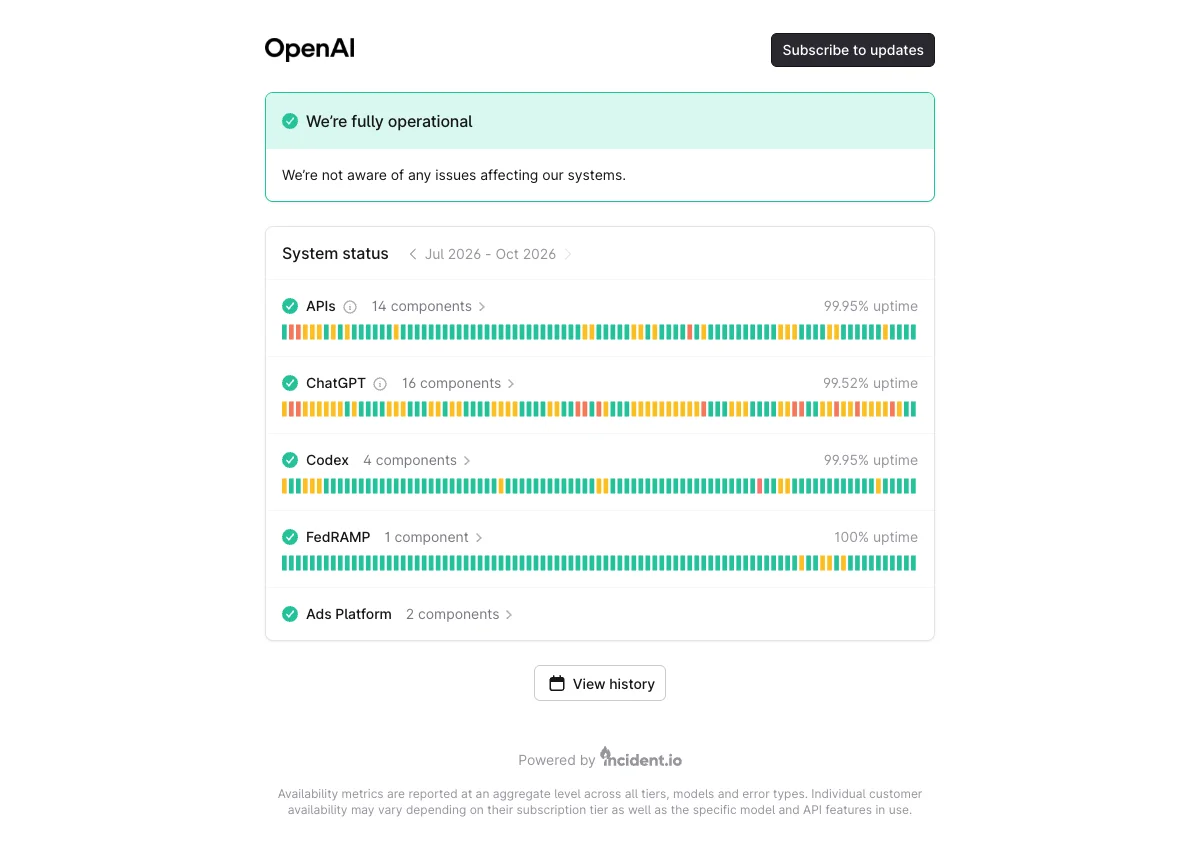
If the official status page has not updated yet during an emerging incident, check these two independent verification channels:
- Downdetector: Displays real-time crowd-sourced incident spikes. A sudden surge of thousands of reports within minutes answers whether is ChatGPT down for everyone or just you.
- Official Feeds & Socials: OpenAI posts incident alerts on X (@OpenAI) and syndicates updates via RSS/Atom feeds at
https://status.openai.com/feed.rss.
Quick-Diagnosis Table: Why Is ChatGPT Not Working?
Diagnose your exact ChatGPT error or symptom using the table below to find the fastest verified resolution.
| What You See | Likely Cause | Verified Fix |
|---|---|---|
| “Something went wrong.” | Stale session token, browser cache corruption, or transient server drop | Refresh with Cmd+Shift+R, start a new chat, or test in Incognito mode. |
| “A network error occurred.” | Broken WebSocket connection on port 443, proxy filter, or VPN restriction | Turn off VPN/proxy, allowlist *.chatgpt.com, or switch to cellular hotspot. |
| “Too many requests in 1 hour.” | Hourly prompt threshold or model rate limit reached | Wait for the hourly reset timer, or switch to a different model tier. |
| “Our systems have detected unusual activity.” | Shared VPN/datacenter IP flagged by Cloudflare anti-bot security | Disconnect VPN, change your password, and log out of all active devices. |
| “There was a problem preparing your chat.” | Third-party browser extension or ad-blocker blocking DOM scripts | Disable script-blocking extensions or open in a private window. |
| “There was an error generating a response.” | Backend model inference timeout or generation stream interruption | Click “Regenerate”, or break long queries into smaller sequential prompts. |
| Stuck on “Thinking…”, freezing, or spinning | Context buffer saturation on a long thread or server inference backlog | Click “Stop generating”, refresh the page, and start a fresh chat thread. |
| “Download failed” / “File Not Found” | Generated file link expired, or file size exceeds 512 MB platform cap | Regenerate the file, verify Code Interpreter is enabled, and check file size. |
| Blank screen, frozen page, or endless loading | Corrupted local storage data for chatgpt.com or failing script load | Perform a hard refresh, clear site cookies, and sign back in. |
| “There is already a user with email…” | Attempting password login instead of Google, Microsoft, or Apple OAuth | Use your original signup method (e.g. Continue with Apple or Google). |
| Cloudflare “Checking your browser…” loop | Strict cookie blocking or privacy extensions preventing token validation | Enable third-party cookies for auth.openai.com and disable privacy shields. |
| “OpenAI’s services are not available in your country” | Geolocated in an unsupported territory or flagged datacenter IP proxy | Connect from an authorized location and disable commercial data-center proxies. |
| “Phone number required” | Unverified phone record on desktop macOS or Windows application | Provide an eligible mobile phone number to complete SMS authentication. |
15 Fixes That Work When ChatGPT Is Not Responding
If you are struggling with ChatGPT not loading or freezing mid-sentence, follow these 15 troubleshooting steps in sequential order.
1. Refresh the Page and Start a New Chat
A single conversation thread can lock up when an API connection drops. Perform a hard reload by pressing Cmd + Shift + R on Mac or Ctrl + Shift + R on Windows. Next, click the New Chat button in the left sidebar to confirm whether the freeze is restricted to a single corrupted thread.
2. Check OpenAI’s Official Status Page
Visit status.openai.com before adjusting advanced network or browser parameters. If OpenAI reports degraded performance on the ChatGPT API or Chat Completions, client-side fixes will not help. Wait for service engineers to resolve the underlying backend incident.
3. Sign Out and Log Back In
Authentication tokens desync after prolonged idle periods or browser updates. Open your account menu in the lower-left corner, select Log out, close your active tabs, and visit chatgpt.com/auth/login. Log back in using the identical authentication provider you selected when creating your account.
4. Clear Browser Cache and Cookies
Stale web assets frequently cause persistent ChatGPT errors. In Chrome, go to Settings > Privacy and security > Delete browsing data. Select Cookies and other site data and Cached images and files for at least the past 24 hours, clear the files, and relaunch the browser.
5. Turn Off Browser Extensions or Test in Incognito
Ad-blockers, script-filtering extensions, and unofficial ChatGPT helper add-ons can block necessary scripts from executing. Open a private browsing session using Incognito Mode (Cmd/Ctrl + Shift + N). If ChatGPT works normally in Incognito, disable extensions one by one in your primary profile to identify the culprit.
6. Try Another Browser or Device
If you experience ChatGPT not loading in Chrome, test the site in Apple Safari, Microsoft Edge, or Mozilla Firefox. Alternatively, load chatgpt.com on a mobile phone to quickly determine whether the issue is isolated to your computer.
7. Turn Off VPN, Proxy, and Secure DNS
Virtual Private Networks and privacy proxies route user traffic through shared datacenter IP pools that OpenAI’s automated abuse filters frequently restrict. Disconnect your VPN client, disable browser proxy add-ons, and pause security filters like McAfee Web Protect.
8. Check Your Network or Switch to Mobile Data
Corporate, school, and hotel Wi-Fi networks frequently block WebSocket traffic over port 443. Turn off Wi-Fi on your smartphone and switch to cellular mobile data. If ChatGPT functions immediately over mobile data, your local router, DNS provider, or ISP is blocking OpenAI domains.
9. Update the ChatGPT Desktop or Mobile App
Older application builds eventually lose compatibility with OpenAI’s newer backend API endpoints. Check the Apple App Store on iOS, Google Play on Android, or the native settings menu on macOS and Windows to ensure you are running the latest official version.
10. Reinstall the Application
If updating does not resolve app crashes, uninstall the app completely. On mobile phones, delete the application, reboot your device, and reinstall ChatGPT from the official app store. This completely purges corrupted local storage databases.
11. Wait Out Rate and Message Limits
Seeing “Too many requests in 1 hour” indicates you have reached your plan’s hourly prompt ceiling. Rate limit counters operate on a rolling window. Wait for the reset timer shown in the chat input bar before submitting your next prompt.
12. Shorten Long Chat Threads
When an ongoing conversation accumulates dozens of messages, the client browser must transmit an enormous context payload on every prompt. This leads to high latency, memory exhaustion, and sudden response timeouts. Start a new thread for fresh tasks to keep context lean.
13. Check File Size and Format for Uploads
ChatGPT enforces an individual file size limit of 512 MB. Uploads will fail if your document exceeds this size or uses unsupported file formats. Ensure your attachment is within limits and that your account has available storage in your 500 MB Library.
14. Clear Security Flags and Secure Your Account
If you receive “Our systems have detected unusual activity from your system”, automated security monitors have flagged your traffic. Immediately update your account password, activate Two-Factor Authentication, and choose Log out of all devices in your account settings.
15. Contact OpenAI Support with a HAR File
If you have exhausted all self-serve troubleshooting, escalate your problem to OpenAI support. Navigate to help.openai.com and open the chat widget in the lower right corner. Generate an HTTP Archive (HAR) file and screenshot any console errors before contacting support to accelerate diagnosis.
Fixes by Platform
Resolve device-specific bugs by following these targeted checklists for your exact operating system.
Web Browser (Chrome, Safari, Edge, Firefox)
- Execute a hard page reload (
Cmd/Ctrl + Shift + R) to refresh client-side bundles. - Delete cookies and site data for
chatgpt.com,openai.com, andauth.openai.com. - Ensure third-party cookies and JavaScript execution are enabled across all OpenAI subdomains.
- Temporarily disable ad-blockers and privacy tools like uBlock Origin or Privacy Badger.
Windows & macOS Desktop Apps
- Force reload the app window using the shortcut
Cmd/Ctrl + R. - Verify application updates via the main settings menu.
- Confirm your mobile phone number is linked and verified if prompted on first start.
- Terminate lingering background helper processes via Task Manager or Activity Monitor.
iPhone (iOS) App
- Force-close the app: Swipe up from the bottom of your screen, pause, and flick the ChatGPT card away.
- Check custom keyboard settings in Settings > General > Keyboard > Keyboards, as third-party keyboards can cause crashes.
- Toggle between Wi-Fi and Cellular Data in the iOS Control Center.
- Confirm iOS version compatibility on the official App Store page.
Android App
- Clear application cache via Settings > Apps > ChatGPT > Storage > Clear Cache.
- Verify that Google Play Services are fully updated on your phone.
- Disable aggressive battery saver modes that terminate background WebSocket connections.
- Review microphone and audio permissions if Voice mode fails to establish a connection.
Specific Errors Explained
Here is what OpenAI’s technical documentation reveals about each specific ChatGPT error message.
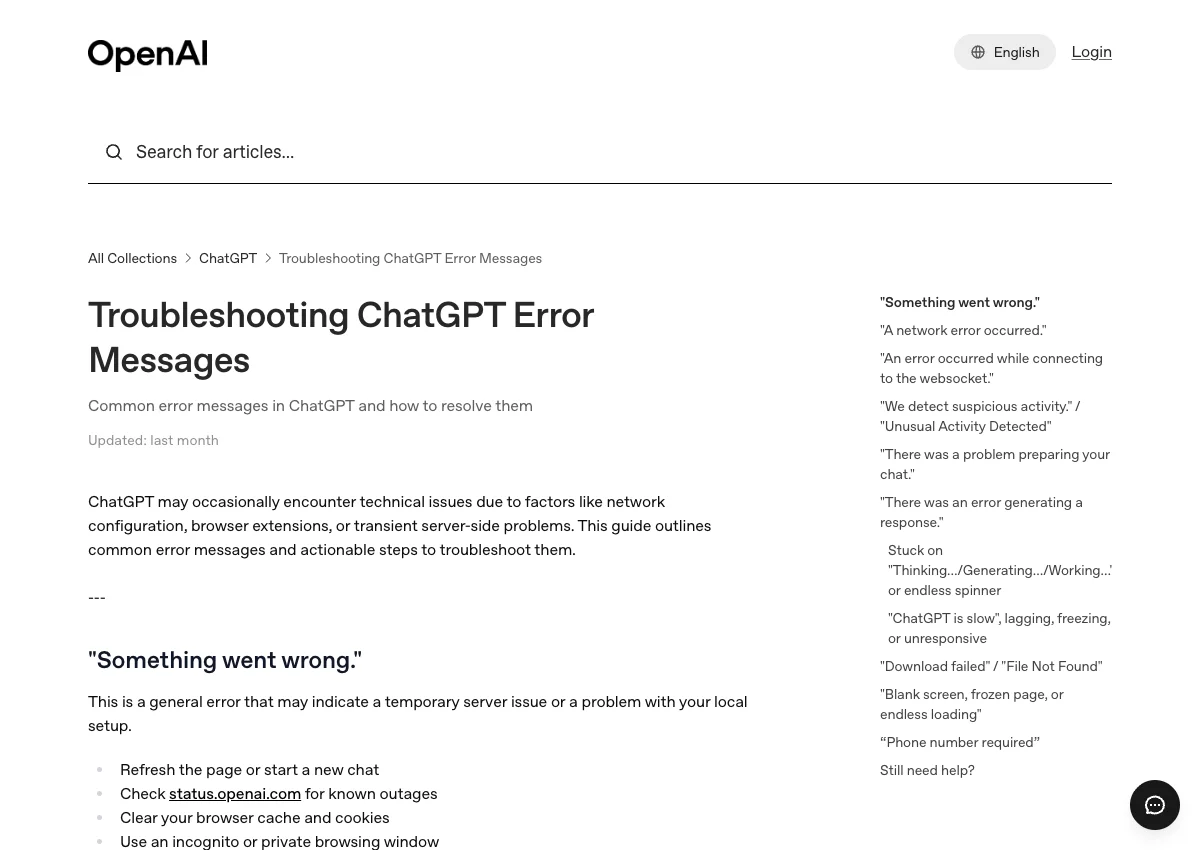
“Something went wrong.” (ChatGPT Something Went Wrong)
Encountering the ChatGPT something went wrong error indicates that the web client received an unparseable response from the backend. This typically occurs when your local session token desyncs or an ad-blocker intercepts the streaming payload. Clearing browser cookies and opening a new chat session usually clears it.
“A network error occurred.” (ChatGPT Network Error)
A ChatGPT network error occurs when the real-time WebSocket connection to wss://ws.chatgpt.com over TCP port 443 is dropped mid-generation. Strict office firewalls, deep-packet inspection gateways, or unstable Wi-Fi networks frequently block this continuous handshake. Allowlisting OpenAI domains or switching to a mobile hotspot resolves the disconnection.
“Too many requests in 1 hour. Try again later.”
This message reflects rate-limiting safeguards designed to protect compute resources during peak traffic. If you submit prompts too rapidly or reach your tier’s hourly threshold, the system enforces a temporary cooling-off period until the next rolling hour window begins.
“Our systems have detected unusual activity from your system.”
OpenAI activates this automated defense when an IP address generates abnormal request volumes that mimic automated scraping bots. Shared commercial VPN servers and proxy tunnels are the most common cause. Disconnecting your VPN and clearing browser cookies resets the filter.
“There was a problem preparing your chat.”
This error arises when the browser fails to load initial conversation state from the server. Third-party extensions that restrict background XMLHttpRequests or block scripts on chatgpt.com/backend-api are the primary trigger.
“There was an error generating a response.”
This error occurs when the AI model starts generating tokens but crashes due to a server-side timeout, GPU memory spike, or content moderation trigger. Clicking the Regenerate button re-routes your request to a different server cluster.
“There is already a user with email…” & Login Loops
OpenAI accounts created via OAuth (Google, Microsoft, or Apple) cannot be accessed using manual email/password fields. If you enabled Apple’s “Hide My Email” feature, your account is tied to an @privaterelay.appleid.com address, requiring you to click Continue with Apple to log in successfully.
Cloudflare “Checking your browser…” Loop
If you are trapped in an infinite Cloudflare challenge loop, your browser is blocking verification cookies from challenges.cloudflare.com. Disable privacy extensions that scramble browser fingerprints and ensure your device clock is synchronized.
ChatGPT Not Working for Free Users: Message Caps & Limits
For users on free tiers, apparent technical failures are often regular usage limits. Free accounts receive unlimited everyday text chats, but advanced capabilities operate under separate quotas:
- Advanced Model Limits: Access to frontier models (like GPT-5.6 Luna and Think mode) is dynamically capped during peak server hours.
- Tool Quotas: Data analysis, file uploads, image generation, and Voice mode have individual daily caps. When a tool cap is reached, tool features pause while standard text chatting remains available.
- Storage Restrictions: Free accounts have 500 MB of total workspace Library storage.
When you reach an applicable cap, ChatGPT displays an in-product countdown showing when your quota resets. Upgrading to a paid subscription immediately clears rate limits. Eligible students can also explore options through our ChatGPT student discount guide.
When Nothing Works: Contacting OpenAI Support
If all troubleshooting steps fail, open an official support inquiry at help.openai.com. Click the chat icon in the lower-right corner to start a conversation with the support team.
To avoid delays, provide these essential diagnostic details in your initial message:
- Account Email: The exact email address linked to your ChatGPT account.
- Timestamp: The exact date, time, and timezone when the error occurred.
- Device & OS: Your operating system version, browser build, or app version.
- HAR File: In Google Chrome, press
F12to open DevTools, select the Network tab, replicate the bug, and click Export HAR. Attach this log to your ticket. - Console Log: Include screenshots of any red error messages displayed in the browser Developer Console.
If you need an immediate coding alternative while OpenAI support investigates, browse our list of apps like OpenAI Codex or read our guide on what Claude AI is good for as a backup platform. Note that competitor tools also encounter occasional capacity strain; see our breakdown of how Claude handles API error 529 overload events.
Related: Why Is ChatGPT So Slow? Causes and 12 Fixes That Work (2026)
Frequently Asked Questions
Why is ChatGPT not working today?
ChatGPT usually stops working due to an official service outage on OpenAI’s servers, a corrupted browser cache, an active VPN triggering Cloudflare security filters, or an expired authentication session.
Is ChatGPT down?
You can check whether ChatGPT is currently down worldwide by visiting status.openai.com or monitoring real-time user incident reports on Downdetector.
Why does ChatGPT say something went wrong?
The “Something went wrong” error is a general notice indicating that OpenAI’s server dropped the request, an ad-blocker blocked the response script, or your local browser session timed out.
Why does ChatGPT keep logging me out?
ChatGPT logs you out when authentication cookies expire, when browser privacy extensions clear session storage on tab close, or when you switch between different IP addresses while connected to a VPN.
Why is ChatGPT not responding?
ChatGPT stops responding when a long chat thread exceeds its memory buffer, when a temporary server load spike freezes token generation, or when your local network drops WebSocket connections over port 443.
Does a VPN break ChatGPT?
Yes, VPNs frequently cause ChatGPT to fail because OpenAI automatically blocks or challenges shared datacenter IP addresses that exhibit bot-like behavior or trigger Cloudflare verification loops.
How do I contact ChatGPT support?
Visit help.openai.com and click the chat icon in the lower right corner to initiate a support ticket with OpenAI’s technical team, including your HAR recording and error details.
Sources & References
Every error code, limit, and troubleshooting fix in this guide was verified directly against official OpenAI technical documentation:
- OpenAI Official Status Page (status.openai.com) — Checked October 18, 2026.
- OpenAI Help Center: Troubleshooting ChatGPT Error Messages (Article 7996703) — Checked October 18, 2026.
- OpenAI Help Center: Why can’t I log in to ChatGPT? (Article 7426629) — Checked October 18, 2026.
- OpenAI Help Center: Network Recommendations for ChatGPT Errors on Web and Apps (Article 9247338) — Checked October 18, 2026.
- OpenAI Help Center: ChatGPT iOS App Potential Failures (Article 7910461) — Checked October 18, 2026.
- OpenAI Help Center: ChatGPT Free Tier FAQ (Article 9275245) — Checked October 18, 2026.


[…] If ChatGPT has completely halted rather than just crawling slowly, see our companion guide on how to fix ChatGPT when it is not working at all. […]