


- Quick answer: Open Settings, go to Privacy, scroll to "Your data" and click Export data. Anthropic emails you a ZIP containing your conversations as JSON. Two things surprise people: there is no way to download a single conversation — the export is all or nothing — and the download link expires 24 hours after it arrives. If you use Claude Code, your sessions are a different matter entirely: they are already on your disk as JSONL files and need no export at all.
This guide covers every route, what each one actually gives you, and the two traps that cost people their export.
What are your options?
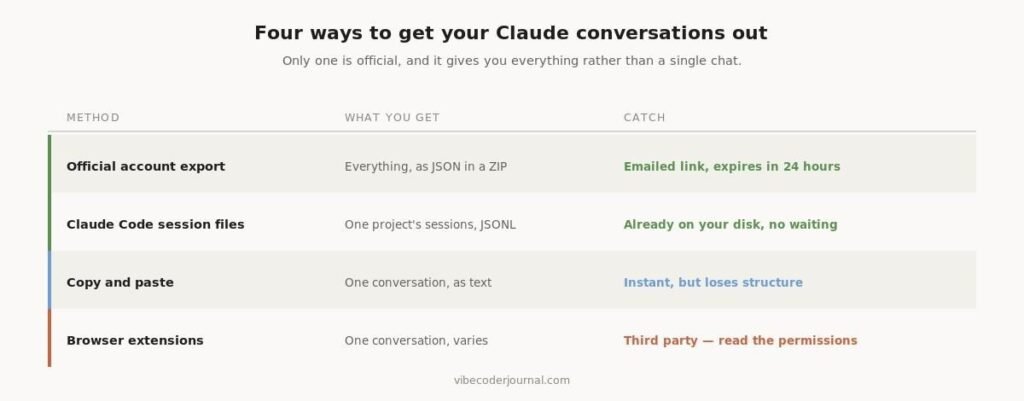
Four routes, and only one of them is official.
| Method | What you get | The catch |
|---|---|---|
| Official account export | Everything, as JSON in a ZIP | Emailed link, expires in 24 hours |
| Claude Code session files | One project’s sessions, as JSONL | Already on disk — no export needed |
| Copy and paste | A single conversation, as text | Instant, but loses structure |
| Browser extensions | One conversation, format varies | Third party — check the permissions |
Verified against the Claude web app and Anthropic’s export documentation, 21 August 2026.
How do you export your Claude data?
Five steps, and the whole thing takes about thirty seconds to start.
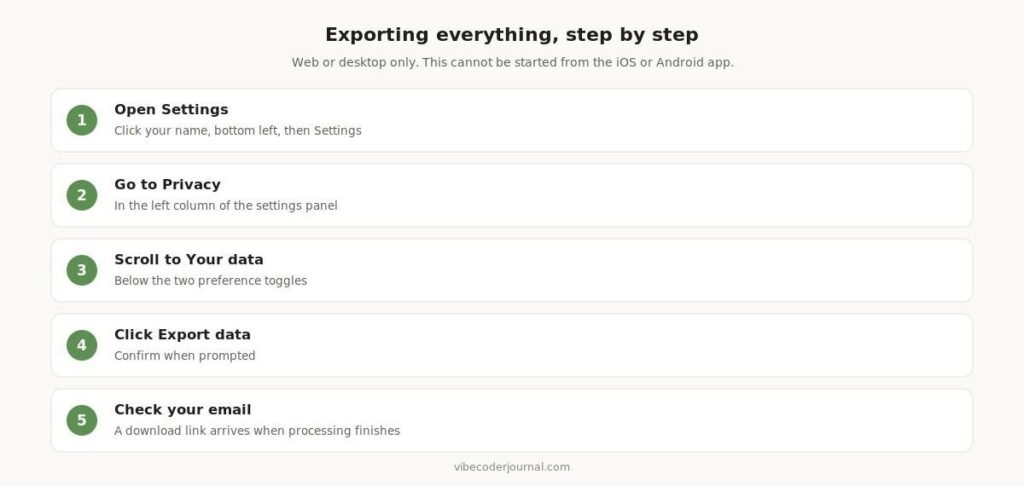
The export flow from Settings to the email link.
Step 1. Click your name in the bottom-left corner, then Settings. Keyboard shortcut is Shift + Cmd + comma on Mac.
Step 2. Choose Privacy from the left column of the settings panel.
Step 3. Scroll past the two preference toggles to the Your data heading.
Step 4. Click Export data. Here is what that screen looks like:
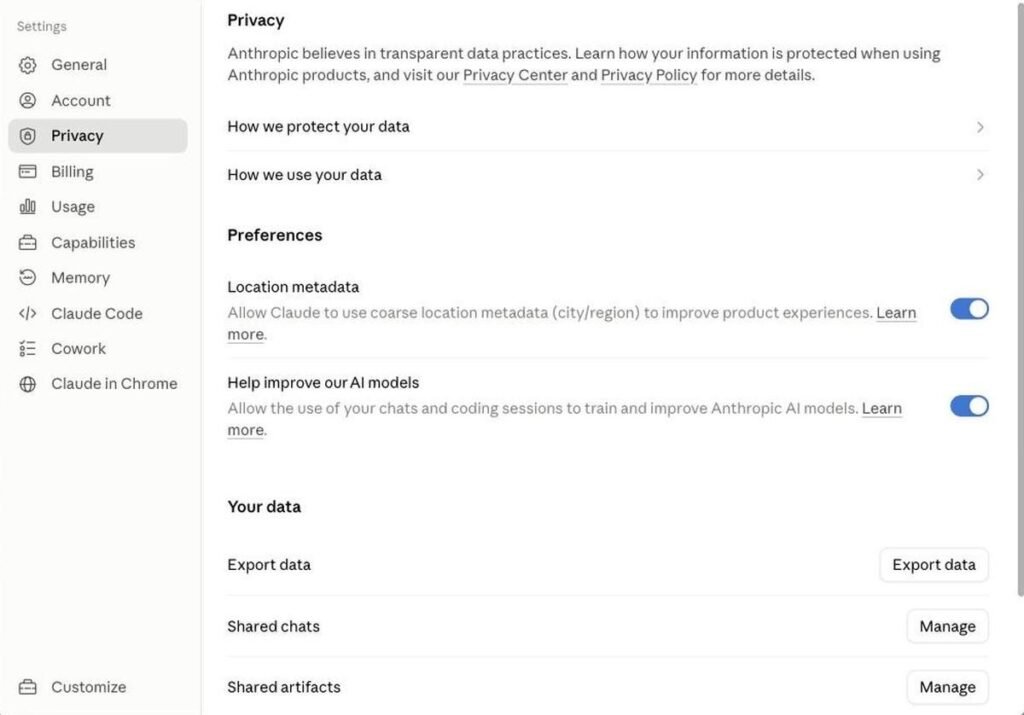
The Privacy panel on a live Pro account. The Export data button sits under “Your data”.
Step 5. Wait for the email. Processing time depends on how much history you have — a light account is quick, a heavy one can take hours.
Availability. The export is available on Free, Pro and Max plans, and can only be started from the web app or Claude Desktop. You cannot run an export from the iOS or Android app. On Team and Enterprise plans, only the organisation’s Primary Owner can request one.
The 24-hour trap
This is the single most common way people lose an export they already waited for.
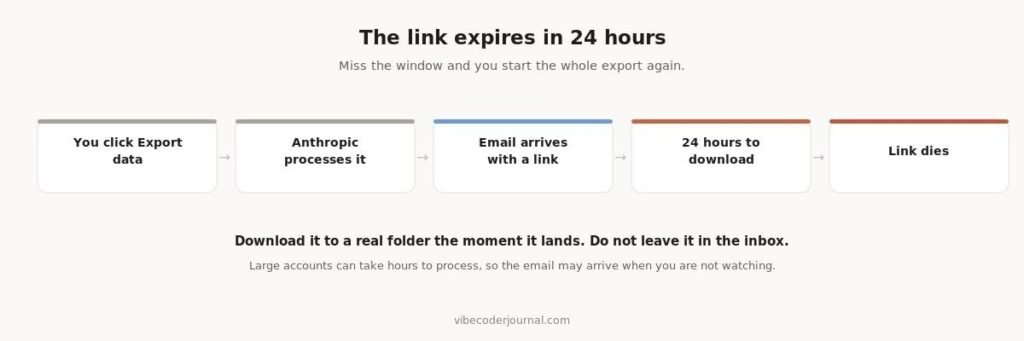
The export lifecycle, and where it ends.
The download link expires 24 hours after it is delivered. If your export takes four hours to process and lands overnight, you may have considerably less usable time than you think.
Do this when the email arrives: download the ZIP immediately, to a real folder rather than leaving it sitting in your inbox. If you miss the window, there is no way to re-open the link — you start the export over.
Can you download just one conversation?
Not through any official feature. There is no export or download option on an individual chat.
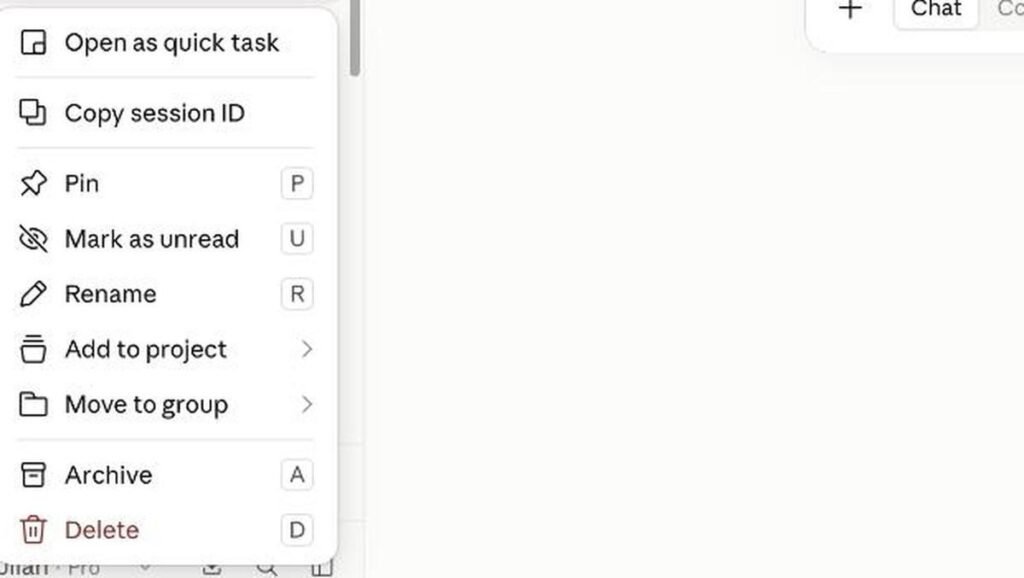
Every option on a single conversation. Export is not among them.
The per-conversation menu offers Open as quick task, Copy session ID, Pin, Mark as unread, Rename, Add to project, Move to group, Archive and Delete. No export, no download, no “save as”.
So your options for a single chat are: run the full account export and pull that one conversation out of the JSON, copy and paste the text by hand, or use a third-party browser extension.
On extensions, a word of caution. Anything that reads your conversations has access to everything in them. Before installing one, check what permissions it requests, whether it sends data anywhere, and who maintains it. For a single chat you need once, copy and paste is slower but leaks nothing.
One useful item in that menu: Copy session ID. That gives you the conversation’s identifier, which is how you find the matching record inside an export file rather than scrolling through JSON looking for it.
What is inside the export?
A ZIP archive containing your conversation history and your account data in JSON format. JSON is machine-readable rather than pleasant to read, which is a feature if you plan to process it and a nuisance if you just wanted a transcript.
If you want something readable, you will need to convert it. The structure is straightforward enough that a short script turns a conversation into Markdown, and several open-source converters exist. Check what any converter does with your data before uploading an export to a web tool — the file contains everything you have ever asked Claude.
Downloading Claude Code sessions
If you use Claude Code, this is an entirely different situation, and a much easier one.
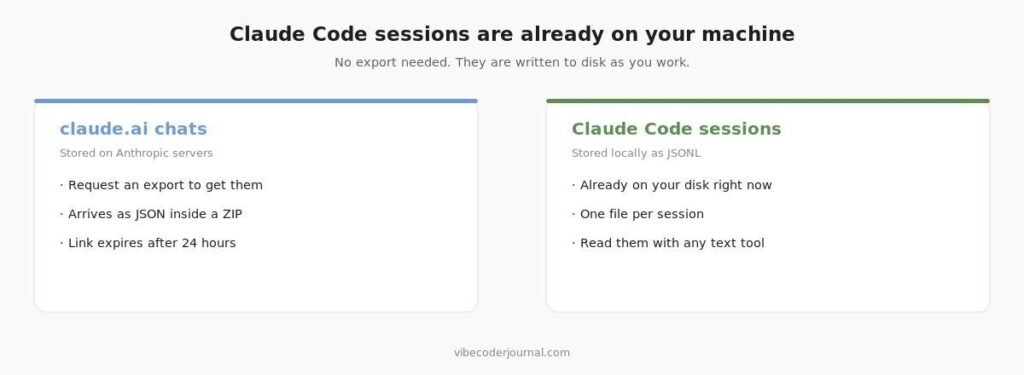
Web conversations live on Anthropic’s servers. Claude Code sessions live on yours.
Claude Code writes each session to your local disk as it goes, in JSONL format — one JSON object per line. There is nothing to request and nothing to wait for. To find them:
find ~/.claude -name “*.jsonl” | head
# see how much history you have accumulateddu -sh ~/.claude
Because they are plain text, you can grep them, pipe them, or feed them to a script directly. This is also how usage-analysis tools work — ccusage reads exactly these files to produce its cost reports, which is why it needs no API key and nothing leaves your machine.
We covered that tool, and the rest of the ways to inspect what Claude Code is doing, in how to see your Claude Code usage.
One caution if you are clearing space: deleting these files removes your session history permanently. If you are trying to reclaim disk, models are almost always the bigger culprit — see our Ollama troubleshooting guide if you also run local models.
Why export at all?
- Leaving the platform. An export is the only way to take your history with you.
- Record-keeping. Regulated work sometimes requires you to retain what a tool was asked and what it answered.
- Analysis. JSON is awkward to read and excellent to process. Counting what you actually use Claude for is genuinely revealing.
- Before deleting an account. Export first. Deletion is not reversible.
- Peace of mind. Accounts get locked, plans lapse, products change. A local copy costs you one click and a few megabytes.
Frequently asked questions
How do I download a Claude conversation?
Go to Settings, then Privacy, then click Export data under “Your data”. Anthropic emails you a ZIP of your full conversation history as JSON. There is no way to download a single conversation on its own.
Can I export just one Claude chat?
Not with any built-in feature. The per-conversation menu has no export option. Your choices are the full account export, copying the text manually, or a third-party browser extension.
How long does a Claude data export take?
It depends on how much history you have. Light accounts finish quickly; large ones can take hours. You receive an email when it is ready.
How long is the Claude export link valid?
24 hours from delivery. After that the link stops working and you have to request a new export.
What format is the Claude export?
A ZIP archive containing JSON files with your conversation history and account data. It is machine-readable rather than a formatted transcript.
Can I export Claude data from my phone?
No. Exports can only be started from the web app or Claude Desktop, not from the iOS or Android apps.
Where are Claude Code sessions stored?
Locally on your own machine, as JSONL files under your Claude configuration directory. Run find ~/.claude -name “*.jsonl” to list them. No export is required.
Who can export data on a Team or Enterprise plan?
Only the organisation’s Primary Owner. Individual members cannot run an export themselves.
Methodology
The export steps and screenshots on this page were captured from a live Claude Pro account on 21 August 2026, not reproduced from documentation. The conversation menu screenshot is included specifically because the absence of an export option is the thing most articles get wrong — several claim a per-chat download exists.
Plan availability and link expiry are from Anthropic’s published export documentation. Personal information has been cropped from all screenshots. We have no commercial relationship with Anthropic and this page contains no affiliate links.
Sources
- Export your Claude data — Anthropic Help Center
- Export your organization’s data — Anthropic Privacy Center, for Team and Enterprise
Verified on a live account on 21 August 2026. Claude’s interface changes often — if a step here no longer matches what you see, tell us and we will re-verify.
Leave a Reply