

By Abdullah Zulfiqar · Published 9 October 2026 · Last updated 9 October 2026 · Checked against OpenAI’s Codex documentation on 9 October 2026
Abdullah Zulfiqar writes about and tests AI coding agents at Vibe Coder Journal.
Codex CLI’s YOLO mode is the –yolo flag, a short alias for –dangerously-bypass-approvals-and-sandbox. It turns off both of Codex’s safety layers: the sandbox that limits what commands can touch, and the approval prompts that ask before risky actions. Codex can then read, write, delete and use the network anywhere your user account can. OpenAI marks it “Elevated Risk” and “not recommended”, and says to use it only inside a dedicated sandbox VM or container.
If you just want Codex to stop asking for permission, you usually don’t need YOLO mode. In a Git repository, the Auto preset (Codex’s recommended default there) already lets Codex edit files and run commands in your project without prompts.
People also call this running Codex as a “YOLO agent”: an AI coding agent with no guardrails. If you searched for “codex dangerously skip permissions”, that’s Claude Code’s flag name. In Codex, the equivalent is –dangerously-bypass-approvals-and-sandbox.
codex –yolo
# same as
codex –dangerously-bypass-approvals-and-sandbox
| You want to… | Use | Sandbox | Prompts |
| Let Codex work in your project without constant prompts | codex (Auto preset, in a Git repo) | Workspace only, no network | Only for actions outside the workspace or needing network |
| Never be asked anything, but keep the sandbox | codex -a never | Still on | None |
| Run unattended in CI | codex exec –sandbox workspace-write | Workspace only | None |
| Full access inside a throwaway container or VM | codex –yolo | Off | None |
What does Codex CLI YOLO mode actually do?
It removes both safety controls at once. Codex’s security comes from two separate layers, and most people only think about one of them:
- Sandbox mode decides what Codex can do: which folders it can write to, and whether commands can reach the network. It’s enforced by your operating system: Seatbelt on macOS, bwrap plus seccomp on Linux and WSL2, and MXC on Windows where supported. WSL1 is no longer supported.
- Approval policy decides when Codex must ask you first, for example before editing outside your project or using the network.
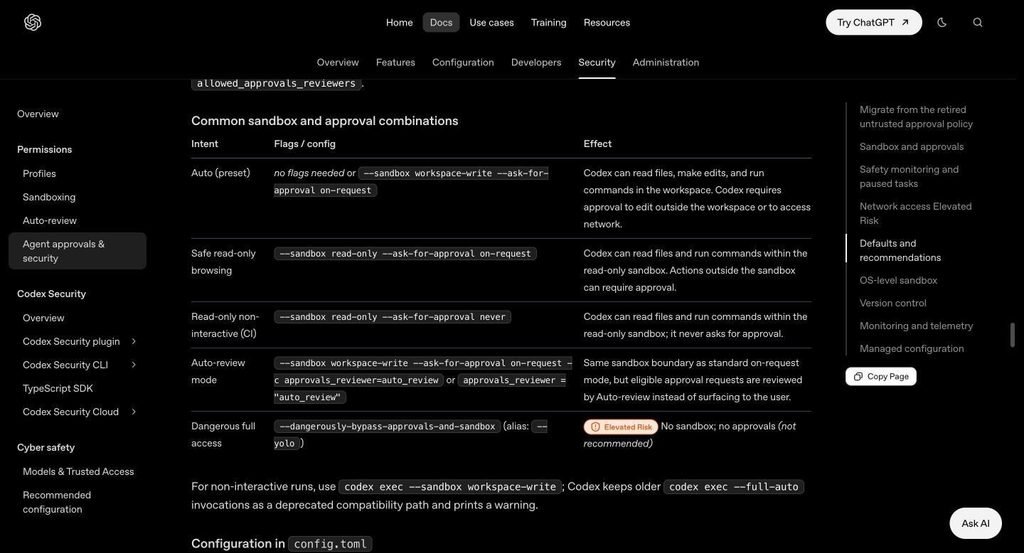
OpenAI Codex docs table of sandbox and approval combinations, showing –dangerously-bypass-approvals-and-sandbox with the –yolo alias marked Elevated Risk
OpenAI’s own table of sandbox and approval combinations. The last row is YOLO mode. Screenshot taken 9 October 2026.
–yolo switches off both. There’s no sandbox, so commands run with your full user permissions and network access. There are no approvals, so Codex never stops to ask. One more change: with full access, Codex’s web search switches from the cached index to live results, which increases exposure to prompt injection from web pages.
What’s the difference between –yolo, -a never and danger-full-access?
They control different things, and only –yolo turns everything off.
| Flag | What it changes | Sandbox | Approval prompts | Risk |
| –ask-for-approval never (-a never) | Approval policy only | Unchanged (your chosen sandbox still applies) | Off | Low (sandbox still on) |
| –sandbox danger-full-access | Sandbox only | Off | Unchanged unless you also set -a | High |
| –dangerously-bypass-approvals-and-sandbox / –yolo | Both | Off | Off | Highest |
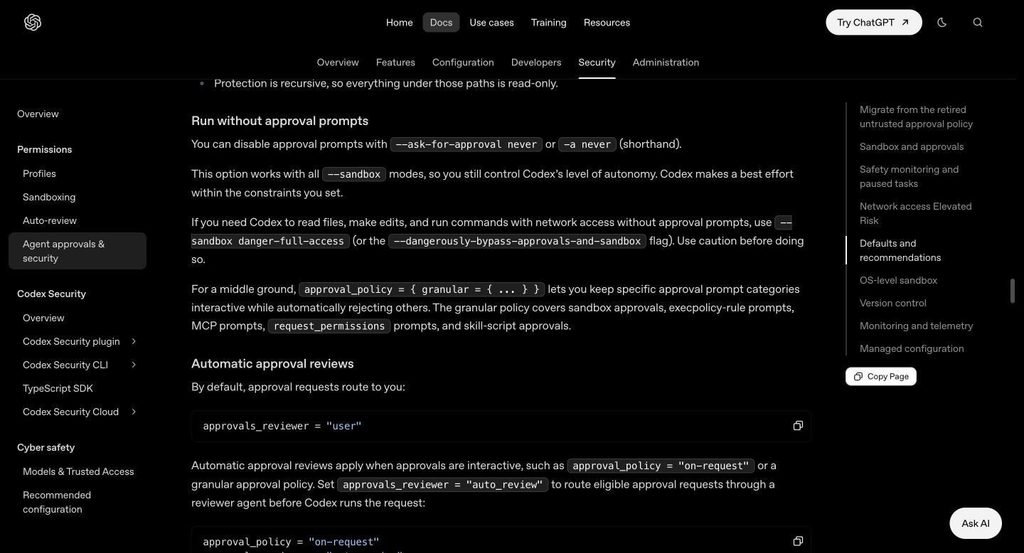
OpenAI Codex docs explaining how to run without approval prompts using –ask-for-approval never or -a never
The “Run without approval prompts” section of OpenAI’s docs. Screenshot taken 9 October 2026.
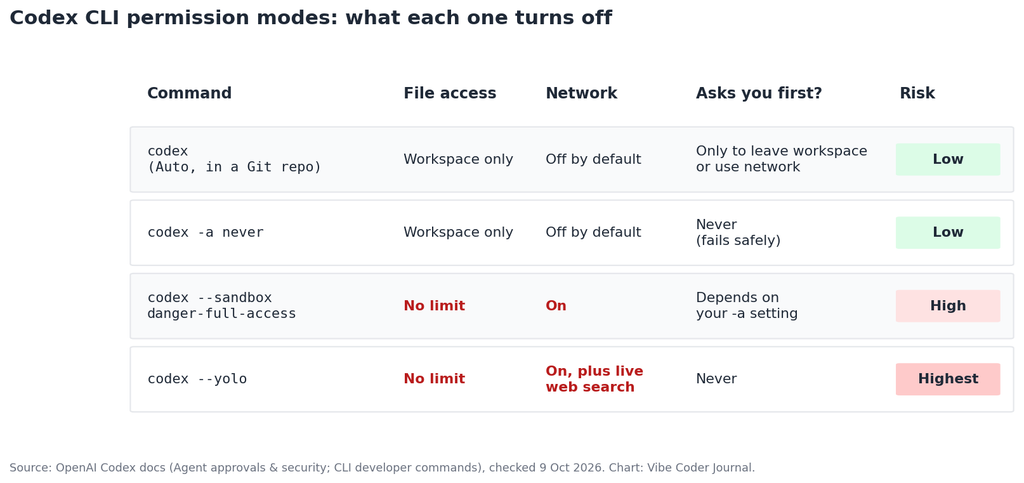
Chart comparing Codex CLI permission modes: Auto, -a never, danger-full-access and –yolo, by file access, network, approval prompts and risk
Our summary of the four ways to run Codex, built from OpenAI’s docs.
That’s why codex -a never is the safer answer to “how do I stop Codex asking me questions”. It never prompts, but in a Git repo the default workspace-write sandbox still keeps Codex inside your workspace (in other folders Codex starts read-only) and, unless you’ve turned on network_access, off the network. Codex does its best within those limits instead of asking to step outside them.
How do you turn on YOLO mode in Codex CLI?
Add the flag when you start Codex. It works for an interactive session or with codex exec for one-off tasks. If you haven’t set Codex up yet, follow our guide to install Codex CLI first.
# Interactive session
codex –yolo
# One-off task
codex exec –yolo “upgrade all dependencies and fix the failing tests”
To make it the default for a specific environment, set both keys in ~/.codex/config.toml, or better, in a separate profile you only use inside a container:
# ~/.codex/container.config.toml
sandbox_mode = “danger-full-access”
approval_policy = “never”
codex –profile container
Run /status inside the session to confirm the active approval policy and writable folders before you hand over a big task.
How do you turn off YOLO mode?
Quit and start Codex without the flag, or change permissions mid-session.
- Type /permissions in the Codex session and pick a stricter preset such as Auto or Read Only. New actions follow the new policy straight away.
- If you set it in config.toml, remove the danger-full-access and never lines, or start Codex with explicit safer flags, which override the file:
codex –sandbox workspace-write –ask-for-approval on-request
Is Codex YOLO mode safe?
Only inside a disposable, isolated environment, and only with code you trust. OpenAI’s CLI reference is direct about it: avoid –dangerously-bypass-approvals-and-sandbox “unless you are inside a dedicated sandbox VM”.
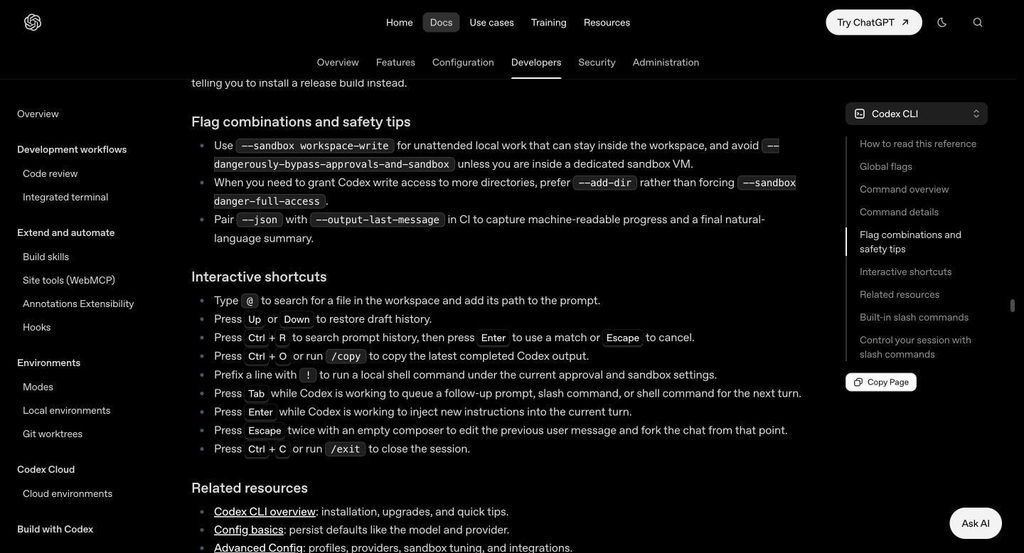
OpenAI Codex CLI reference flag combinations and safety tips advising to avoid the bypass flag unless inside a dedicated sandbox VM
The “Flag combinations and safety tips” section of the Codex CLI reference. Screenshot taken 9 October 2026.
The real risks on your own computer:
- Deleted or overwritten files outside the project. Without the sandbox, nothing stops a bad rm or a script that writes to the wrong folder.
- Leaked secrets. Codex can read ~/.ssh, .env files, cloud credentials and browser data your user account can read.
- Prompt injection. A malicious README, dependency or web page can tell the agent to run commands. With approvals off, nobody checks them first.
- Network side effects. Codex can push to Git, call APIs or publish packages with your credentials.
Even a container isn’t perfect. OpenAI warns that with full access inside a devcontainer, a malicious project can still steal anything inside it, including your Codex credentials:
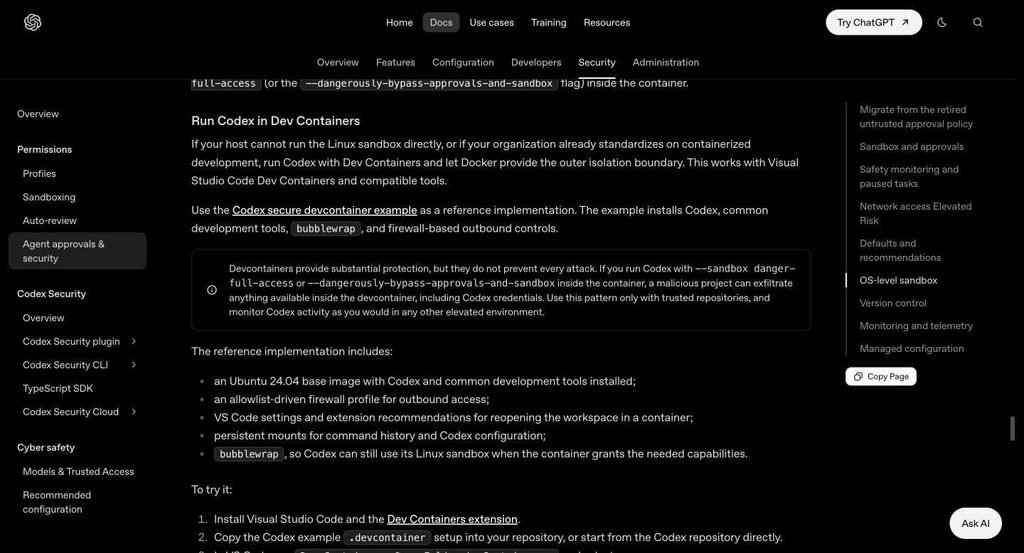
OpenAI Codex docs warning that devcontainers don’t prevent every attack when running with danger-full-access or the bypass flag
OpenAI’s Dev Containers warning. Screenshot taken 9 October 2026.
How can you use Codex YOLO mode safely?
Run it only in a throwaway container or VM, on code you trust, with no real secrets inside. Set it up so a mistake can’t hurt your main machine:
- Run it in a container or VM. OpenAI publishes a secure devcontainer example with an Ubuntu 24.04 image, Codex preinstalled and an allowlist firewall for outbound traffic. Open the folder with .devcontainer/devcontainer.secure.json. If the container is your security boundary, run codex –sandbox danger-full-access inside it, or codex –yolo if you also want no prompts. OpenAI calls the included firewall a starting point, not a complete defence.
- Use trusted repositories only. Never run YOLO mode on a repo, issue or pull request you haven’t read.
- Keep secrets out. Don’t mount ~/.ssh, cloud credentials or production .env files into the container. Use short-lived, low-permission tokens.
- Work on a branch. Keep git status clean before you start, commit often, and review /diff before merging anything.
- Watch long runs. Use /ps to check background terminals, and /stop to cancel them.
Safer alternatives to YOLO mode
Most “I’m tired of approvals” problems are solved without turning the sandbox off.
1. Just use the Auto preset (the default)
In a Git repository, Codex starts in Auto (–sandbox workspace-write –ask-for-approval on-request). It can read, edit and run commands in your project with no prompts. It only asks when it needs to go outside the workspace or use the network. Run plain codex and let it work.
2. Allow network access but keep the sandbox
Most approval prompts come from commands that need the internet, like npm install or pip install. Turn on network access for the workspace sandbox instead of removing it:
[sandbox_workspace_write]
network_access = true
To limit where commands can connect, also turn on the network proxy with a domain allowlist:
[features.network_proxy]
enabled = true
domains = { “registry.npmjs.org” = “allow”, “pypi.org” = “allow” }
3. Give access to one more folder with –add-dir
If Codex needs to write to a second project or a shared folder, add just that folder. Don’t drop the whole sandbox. OpenAI recommends –add-dir “rather than forcing –sandbox danger-full-access”:
codex –add-dir ../shared-lib
4. Use –ask-for-approval never (no prompts, still sandboxed)
codex -a never
Good for long unattended runs where you’d rather Codex fail safely than wait for you.
5. Let an AI reviewer approve for you (Auto-review)
Keep approvals on, but route them to a reviewer agent instead of to you:
approval_policy = “on-request”
approvals_reviewer = “auto_review”
The reviewer checks each request that needs approval for data theft, credential probing, security weakening and destructive actions. Critical-risk actions are always denied. Actions that stay inside the sandbox continue without review. It adds some extra model usage.
6. Use granular approvals
approval_policy = { granular = { … } } keeps some prompt types interactive (for example sandbox escalations and MCP tool calls) while automatically rejecting others.
Codex YOLO mode for CI and automation
For scripts and CI pipelines, use codex exec with the workspace sandbox:
codex exec –sandbox workspace-write –json –output-last-message result.md \
“run the test suite and fix any failures”
The old codex exec –full-auto still works but is deprecated and prints a warning. If your CI runner is itself a throwaway container, you can use –yolo there. The container is the safety boundary, and it gets deleted after the job. Still deciding which agent to automate with? See our Codex CLI vs Claude Code comparison.
Running Codex in Docker? The built-in Linux sandbox may not work inside a container that blocks namespaces or seccomp. OpenAI’s advice is to make the container your isolation boundary, then run Codex with –sandbox danger-full-access (or –yolo) inside it.
Codex YOLO mode vs Claude Code’s dangerously-skip-permissions
They’re the same idea in two tools. Codex’s –yolo and Claude Code’s –dangerously-skip-permissions both remove the “ask first” step for an AI coding agent. Both makers recommend running them only in isolated environments. The main difference is that Codex also has a separate sandbox layer, so Codex users can drop the prompts (-a never) while keeping the sandbox. See our guide to Claude Code’s dangerously-skip-permissions for the Claude side.
FAQ
What is –yolo in Codex CLI?
It’s the short alias for –dangerously-bypass-approvals-and-sandbox. It runs Codex with no sandbox and no approval prompts, so the agent has the same access to files and the network as your user account.
How do I stop Codex from asking for approval?
Use codex -a never (–ask-for-approval never). Codex stops asking but stays inside the sandbox. If most prompts are about network access, turn on network_access = true under [sandbox_workspace_write] instead.
Is –dangerously-bypass-approvals-and-sandbox the same as –yolo?
Yes. –yolo is an alias for exactly the same flag.
Does Codex YOLO mode have network access?
Yes. With no sandbox, commands can reach the network, and web search switches to live results instead of the cached index.
Can I set YOLO mode in config.toml?
Yes: sandbox_mode = “danger-full-access” plus approval_policy = “never”. Put it in a separate profile file and load it with codex –profile <name> only inside a container, so it doesn’t apply on your main machine.
What happened to the “untrusted” approval policy?
Codex no longer supports approval_policy = “untrusted”, and leaving it in your config can stop Codex from starting. Remove it. For a strict setup, use –sandbox read-only –ask-for-approval on-request.
Does YOLO mode make Codex faster?
It removes waiting for your approvals, which speeds up long tasks. It doesn’t make the model itself faster. If most of your waiting is for prompts inside the project, the Auto preset or -a never removes most of it without dropping the sandbox.
Sources
- OpenAI: Agent approvals & security (sandbox and approval combinations, –yolo alias, network settings, Auto-review, Dev Containers), checked 9 October 2026
- OpenAI: Codex CLI developer commands reference (flag safety tips, /permissions, /status), checked 9 October 2026
- OpenAI Codex secure devcontainer example on GitHub
Related reading
- Codex CLI vs Claude Code
- How to install Codex CLI
- Claude dangerously-skip-permissions explained
- Apps like Codex
Leave a Reply