


By Abdullah Zulfiqar · Published 5 October 2026 · Checked against Kilo Code’s documentation on 5 October 2026
Yes. Kilo Code (often searched as “Kilo AI”) can run entirely on local resources. It connects to models on your own machine through Ollama, LM Studio, Atomic Chat, Anaconda Desktop, or any server with an OpenAI-compatible API, such as llama.cpp’s llama-server. Your code stays on your computer and there are no API fees. The catch is hardware: Kilo’s docs recommend a GPU with 24 GB or more of VRAM, or a Mac with 32 GB or more of unified memory, for its suggested coding models.
| Question | Short answer |
| Can Kilo Code use local models? | Yes: Ollama, LM Studio, Atomic Chat, Anaconda Desktop, or any OpenAI-compatible server |
| Do I need an API key? | No, not for Ollama or LM Studio running locally |
| Which model does Kilo recommend? | qwen3-coder:30b, with devstral:24b as an alternative |
| What hardware? | 24 GB+ GPU VRAM, or a Mac with 32 GB+ unified memory |
| Does it work offline? | Yes, once the model is downloaded |
| Is it as good as Claude or GPT? | No. Kilo’s own docs say local models are more likely to loop or misuse tools |
Which local tools does Kilo Code support?
Kilo Code has built-in providers for four local tools, plus a generic option for anything with an OpenAI-compatible API. You pick one in Settings → Providers in the VS Code extension, or in the Kilo CLI.
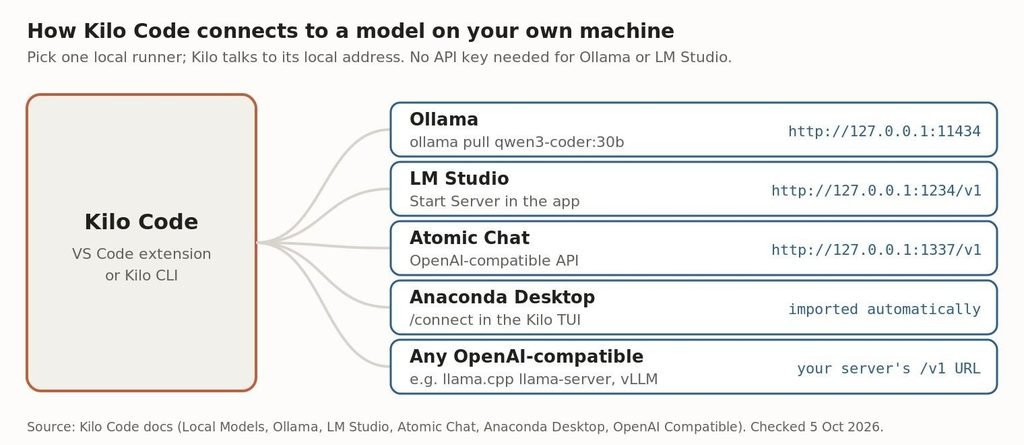
How Kilo Code connects to local model runners: Ollama, LM Studio, Atomic Chat, Anaconda Desktop and any OpenAI-compatible server
Each local runner listens on its own local address. Source: Kilo Code documentation, checked 5 October 2026.
| Local runner | Default address Kilo expects | Best for |
| Ollama | http://127.0.0.1:11434 | Command-line users; the setup Kilo documents in most detail |
| LM Studio | http://127.0.0.1:1234/v1 | People who want a desktop app to browse and download models |
| Atomic Chat | http://127.0.0.1:1337/v1 | An open-source app with a built-in chat UI and an OpenAI-compatible API |
| Anaconda Desktop | Imported automatically by Kilo | Anaconda users; Kilo finds the running model server for you |
| OpenAI-compatible | Your server’s /v1 URL | llama.cpp’s llama-server, vLLM, or a model server on another machine |
One thing worth knowing: Kilo’s documentation now carries a notice that Kilo has been acquired by Anaconda, which explains the dedicated Anaconda Desktop provider.
What hardware do you need to run Kilo Code locally?
For Kilo’s recommended models, a GPU with at least 24 GB of VRAM or a Mac with at least 32 GB of unified memory. That’s the guidance in Kilo’s Ollama documentation for running its suggested models “at decent speed”.
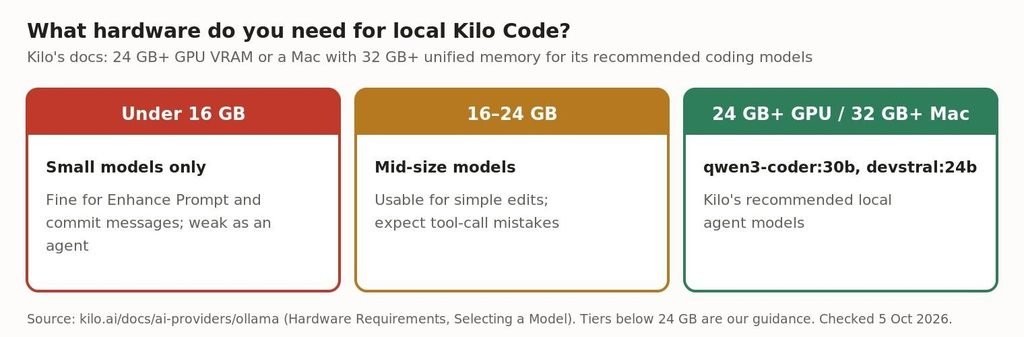
Hardware guide for running Kilo Code with local models, by available memory
The 24 GB / 32 GB threshold is from Kilo’s docs; the lower tiers are our guidance.
Smaller machines can still be useful. Kilo’s docs note that smaller models may be enough for lighter features such as Enhance Prompt and commit message generation. Using a small model as a full coding agent, where it has to read files, edit code and run commands, is where it struggles.
Not sure what fits on your machine? Our guide to which models fit in 32 GB of memory covers model sizes and quantization in more detail.
How do I set up Kilo Code with Ollama?
Install Ollama, pull a model, raise the context size, then add Ollama as a provider in Kilo. Here are the steps from Kilo’s documentation.
- Install and start Ollama. Download it from ollama.com, then make sure it’s running:
ollama serve
- Download a model. In a second terminal, pull Kilo’s recommended model:
ollama pull qwen3-coder:30b
- Raise the context window. This is the step most people miss. Kilo’s docs say Ollama truncates prompts to a short length by default and that you need at least 32k to get decent results. Set “Context Window Size (num_ctx)” in Kilo’s provider settings. A bigger context uses more memory, so increase it only as far as your hardware allows.
- Add Ollama in Kilo. Open Settings (the gear icon), go to the Providers tab and add Ollama. No API key is needed. Local Ollama models use the format ollama/<model_name>, for example ollama/qwen3-coder:30b.
- Raise the timeout if needed. Kilo’s API requests time out after 10 minutes by default. If a slow local model hits that limit, raise “API Request Timeout” in Kilo’s settings.
If Ollama itself is giving you trouble, our Ollama troubleshooting guide covers the common problems.
How do I use LM Studio with Kilo Code?
Download a GGUF model in LM Studio, start its local server, then add LM Studio as a provider in Kilo. LM Studio’s server copies the OpenAI API, so Kilo can talk to it directly.
- Install LM Studio from lmstudio.ai and download a model in GGUF format.
- Open the Local Server tab, select the model, and click Start Server.
- In Kilo, go to Settings → Providers and add LM Studio. No API key is needed.
If you see the error “Please check the LM Studio developer logs to debug what went wrong”, Kilo’s docs suggest adjusting the context length setting in LM Studio.
Choosing between the two? We’ve measured speed differences between Ollama and raw llama.cpp in our llama.cpp vs Ollama speed test.
Can I connect Kilo Code to llama.cpp or another local server?
Yes. Add it as a custom OpenAI-compatible provider. In Settings → Providers, scroll down, click Custom provider, and fill in:
- Provider API: OpenAI Compatible
- Base URL: your server’s address, for example http://127.0.0.1:8080/v1 for llama.cpp’s llama-server on its default port
- API key: leave it empty if your local server doesn’t require one
Kilo then checks the server’s /v1/models endpoint and lists the available models. If that fails, you can type the model ID by hand. This route also works for a model server running on another machine on your network, such as a desktop with a big GPU serving a laptop.
What works well locally, and what doesn’t?
Local models handle simple, well-defined tasks. They’re much weaker as autonomous agents. Kilo’s documentation is unusually direct about this: local models are “much more likely to get stuck in loops, fail to use tools properly or produce syntax errors in code”.
| Works well locally | Struggles locally |
| Explaining code, small edits, writing tests for one function | Long multi-step agent tasks across many files |
| Commit messages and Enhance Prompt | Reliable tool calling (reading files, running commands) |
| Private or offline work | Features that local models usually lack, such as prompt caching and computer use |
Kilo’s docs give three ways to get better results from a local model:
- Keep conversations short. Start a new task instead of continuing a long one.
- Use simple, specific prompts. If the model fails to call a tool, rephrase the prompt or use the Enhance Prompt button.
- Disable MCP tools you don’t need. Fewer tools means a smaller prompt and faster responses.
Our take: a mixed setup works best for most people. Use a local model for private code, quick edits and commit messages, and switch to a cloud model in the same Kilo install when a task needs a strong agent.
How do I fix common Kilo Code local model errors?
Most problems come down to the runner not running, the wrong address, or the wrong model name.
| Problem | Likely cause | Fix |
| “No connection could be made because the target machine actively refused it” | Ollama, LM Studio or Atomic Chat isn’t running, or is on a different port | Start the runner and check the Base URL: Ollama :11434, LM Studio :1234/v1, Atomic Chat :1337/v1 |
| “Model not found” | The model name doesn’t match | For Ollama, use exactly the name you’d give ollama run |
| Model ignores your files or forgets earlier instructions | Context window too small | Set num_ctx to at least 32k for Ollama |
| Requests stop after 10 minutes | Default API request timeout | Raise “API Request Timeout” in Kilo’s settings |
| Model doesn’t appear in the picker | Custom or fine-tuned model | Register it as a custom model in your kilo.json config |
| Very slow responses | Model too big for your hardware | Try a smaller model, or check that it’s running fully on your GPU |
FAQ
Is Kilo Code free to use with local models?
Running local models costs nothing in API fees, because the model runs on your own hardware and Kilo connects to it directly. You don’t need an API key for Ollama or LM Studio. Your costs are the hardware and electricity, plus any paid Kilo features you choose to use separately.
Does Kilo Code work offline?
Yes. Kilo’s documentation lists offline access as one of the benefits of local models. Once you’ve downloaded a model through Ollama, LM Studio or another local runner, Kilo can use it without an internet connection.
What is the best local model for Kilo Code?
Kilo’s documentation currently recommends qwen3-coder:30b for the Kilo Code agent, with devstral:24b as an alternative. It notes that qwen3-coder:30b sometimes fails to call tools correctly, and suggests rephrasing the prompt or using Enhance Prompt when that happens.
Can I run Kilo Code on a laptop without a GPU?
You can, but expect slow responses and weak agent behaviour. Kilo recommends 24 GB or more of GPU VRAM, or a Mac with 32 GB or more of unified memory, for its suggested models. On smaller machines, use small models for light tasks such as commit messages, and a cloud model for agent work.
Is “Kilo AI” the same as Kilo Code?
Yes. Kilo Code is the open-source AI coding agent from Kilo, whose website is kilo.ai, so many people search for it as “Kilo AI”. It runs as a VS Code extension and as a command-line tool, and both can use local models.
Sources
- Kilo Code docs: Using Local Models, checked 5 October 2026
- Kilo Code docs: Using Ollama with Kilo Code, checked 5 October 2026
- Kilo Code docs: Using LM Studio with Kilo Code, checked 5 October 2026
- Kilo Code docs: Using OpenAI Compatible Providers, checked 5 October 2026
- Kilo Code docs: Using Anaconda Desktop with Kilo Code, checked 5 October 2026
Related reading
- How to run LLMs locally
- Which models fit in 32 GB of memory
- Is llama.cpp faster than Ollama?
- Claude Code alternatives


Leave a Reply