

Last updated: November 20, 2026. Checked against the official Ollama docs and the current Ollama CLI source code.
Ollama is easy to start with and easy to forget. You run ollama run once, it works, and three weeks later you can’t remember how to see which models are eating your RAM, how to change the port, or why ollama rm didn’t free up the disk space you expected.
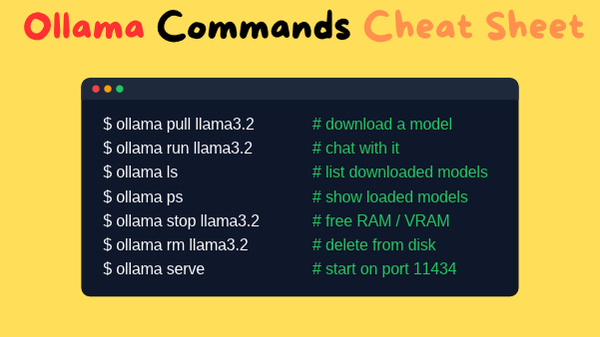
Here’s every command in one place. This Ollama commands cheat sheet covers the whole current Ollama CLI, the flags worth knowing, the slash commands inside a chat session, the environment variables that change how the server behaves, the errors you’ll actually hit, and the exact steps to uninstall Ollama on macOS, Linux and Windows. Keep it open in a tab.
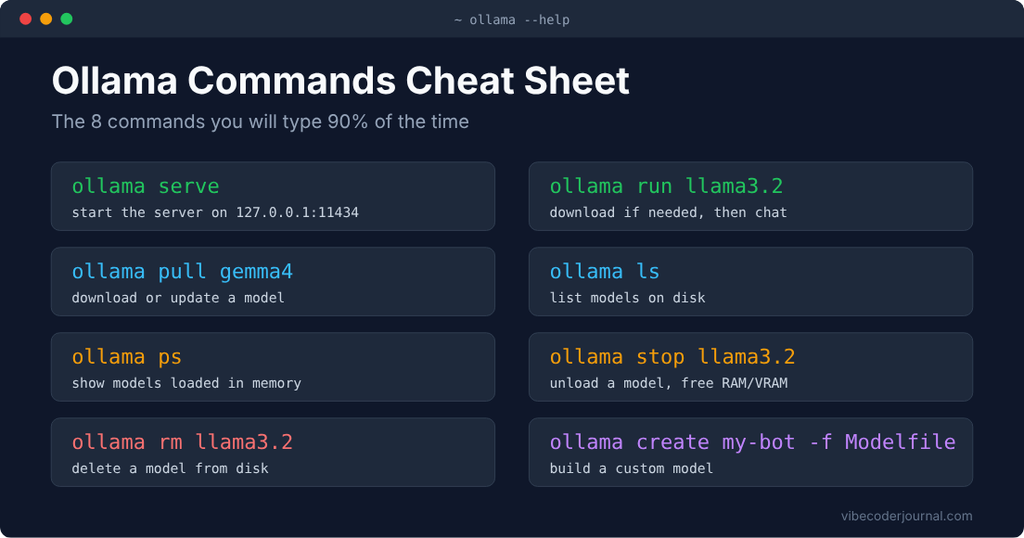
Ollama commands cheat sheet: quick reference table
If you only need a quick reminder, this table is the whole cheat sheet in one place. Swap llama3.2 for whatever model you actually use.
| Command | What it does |
|---|---|
ollama serve | Starts the Ollama server (alias: ollama start) |
ollama run llama3.2 | Runs a model and opens a chat. Pulls it first if it isn’t on disk |
ollama run llama3.2 "your prompt" | Sends one prompt, prints the answer, exits |
ollama pull llama3.2 | Downloads a model, or updates it to the newest version of that tag |
ollama list or ollama ls | Lists every model you have downloaded |
ollama ps | Lists models currently loaded in memory |
ollama stop llama3.2 | Unloads a running model |
ollama rm llama3.2 | Deletes a model from disk (you can pass several names) |
ollama show llama3.2 | Shows model details: parameters, context length, quantization, license |
ollama cp llama3.2 my-llama | Copies a model under a new name |
ollama create my-bot -f Modelfile | Builds a custom model from a Modelfile |
ollama push username/my-bot | Uploads a model to ollama.com |
ollama signin / ollama signout | Signs in or out of ollama.com (aliases: login, logout) |
ollama launch | Sets up and starts a coding tool such as Claude Code or Codex with an Ollama model |
ollama -v | Prints the installed Ollama version |
ollama [command] --help | Shows help and flags for any command |
How to install Ollama (Linux, Mac with brew install ollama, Windows)
Linux: one command installs Ollama and sets it up as a systemd service.
curl -fsSL https://ollama.com/install.sh | shmacOS: download the app from ollama.com/download and drag it into Applications, or use Homebrew:
brew install ollama
brew services start ollama   # keep the server running in the background
Windows: download and run OllamaSetup.exe from ollama.com/download. It doesn’t need admin rights and installs into your user folder. You can also install from PowerShell:
irm https://ollama.com/install.ps1 | iexThen check it worked:
ollama -vHow to use Ollama in three commands
If you want a short Ollama tutorial, this is it. Install, pull a model, run it:
ollama pull llama3.2
ollama run llama3.2
>>> Write a bash one-liner that counts lines in every .py file
Type /bye to leave the chat. Everything else on this page builds on those commands. For the bigger picture, including which hardware you need, see our guide to running LLMs locally.
The ollama serve command
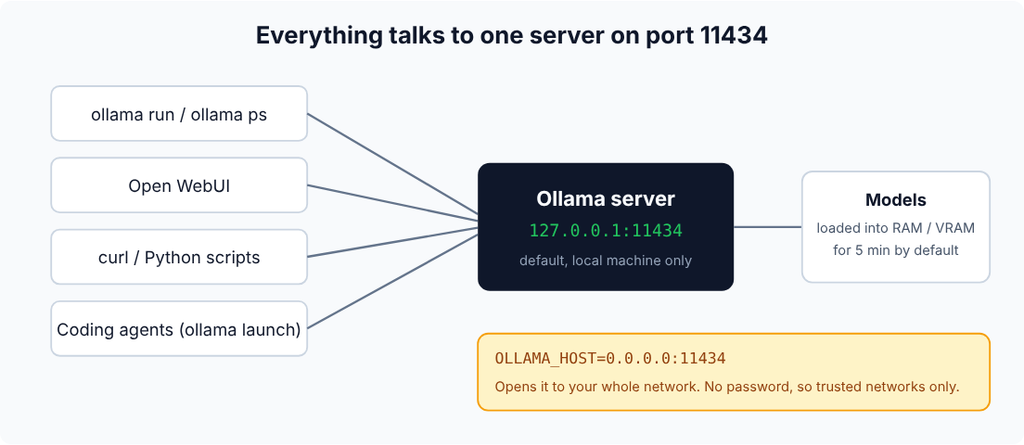
Everything in Ollama goes through a local server. The CLI, Open WebUI, your Python scripts and any coding agent all talk to it over HTTP. On macOS and Windows the desktop app starts the server for you, and the Linux install script sets it up as a systemd service, so most people never type ollama serve at all.
You need it when:
- you installed Ollama manually or through Homebrew and nothing is running yet
- you get
Error: could not connect to ollama server - you want to start the server with different environment variables for one session
# start the server in the foreground
ollama serve

# start it with a custom host and a longer keep-alive, just for this session
OLLAMA_HOST=0.0.0.0:11434 OLLAMA_KEEP_ALIVE=30m ollama serve

# list the main environment variables the server understands
ollama serve --help
If you see bind: address already in use, the server is already running in the background, usually through the desktop app or the systemd service. You don’t need a second copy. Just run your other commands.
Homebrew users can run Ollama as a background service with brew services start ollama. Linux users manage the service with sudo systemctl start ollama, sudo systemctl stop ollama and sudo systemctl status ollama.
Ollama default port
The default Ollama port is 11434, and the server binds to 127.0.0.1, so only your own machine can reach it. The base URL for the API is http://localhost:11434.
To change the port, or to let other devices on your network connect, set OLLAMA_HOST:
- Linux (systemd): run
sudo systemctl edit ollama.service, addEnvironment="OLLAMA_HOST=0.0.0.0:11434"under[Service], then runsudo systemctl daemon-reloadandsudo systemctl restart ollama. - macOS (desktop app): run
launchctl setenv OLLAMA_HOST "0.0.0.0:11434", then quit and reopen Ollama. - Windows: quit Ollama from the tray, add
OLLAMA_HOSTunder “Edit environment variables for your account”, then start Ollama again from the Start menu.
A quick warning: 0.0.0.0 means “listen on every network interface.” The local API has no password, so anyone who can reach that port can use your models. Only do this on a network you trust, or put Ollama behind a firewall or reverse proxy.
Running models: ollama run
ollama run is the command you’ll use most. Give it a model name and it pulls the model if needed, loads it into memory and drops you into a chat prompt (>>>). Add a prompt in quotes and it answers once and exits, which is handy in scripts.
# interactive chat
ollama run llama3.2

# one-off answer
ollama run llama3.2 "Explain what a race condition is in two sentences"

# pipe a file in
cat error.log | ollama run llama3.2 "What is causing this error?"

# ask a vision model about an image by putting the file path in the prompt
ollama run gemma4 "What's in this image? ./screenshot.png"

# get an embedding back as a JSON array
ollama run embeddinggemma "Hello world"
Flags for ollama run that are worth knowing:
| Flag | What it does |
|---|---|
--verbose | Prints timing stats after each answer, including tokens per second. The quickest way to compare speed between models |
--format json | Asks the model to reply in JSON |
--keepalive 30m | How long the model stays loaded after the last request |
--think | Turns thinking on or off for models that support it. Some models also accept high, medium or low |
--hidethinking | Hides the thinking output and shows only the answer |
--nowordwrap | Stops the CLI from wrapping long lines |
--dimensions, --truncate | Embedding models only: set the output size and decide what happens to inputs that are too long |
If you’re comparing speed, --verbose is the flag to remember. Watch the “eval rate” line: that’s how many tokens per second the model generates. It’s also the number to look at if you’re wondering whether llama.cpp is faster than Ollama.
Slash commands inside a chat session
Once you’re at the >>> prompt, regular text goes to the model and anything starting with / is a command for Ollama itself.
| Command | What it does |
|---|---|
/? or /help | Lists all session commands |
/? shortcuts | Lists keyboard shortcuts |
/set system You are a strict code reviewer | Sets the system message for this session |
/set parameter temperature 0.2 | Changes a parameter for this session |
/set parameter num_ctx 8192 | Raises the context window for this session |
/set verbose / /set quiet | Turns timing stats on or off |
/set think / /set nothink | Turns thinking on or off |
/set format json / /set noformat | Turns JSON mode on or off |
/show info | Shows details about the loaded model |
/show parameters, /show system, /show template, /show modelfile | Shows that part of the model’s setup |
/save my-session | Saves the current chat, settings included, as a new model |
/load my-session | Loads a saved session or switches model |
/clear | Clears the conversation context |
/bye | Exits the chat (Ctrl+D works too) |
Two REPL tricks worth knowing. To paste multi-line text, wrap it in triple quotes (""") so pressing Enter doesn’t send half of it. And press Ctrl+C to stop a long answer without leaving the session.
Managing models: pull, list, show, copy and remove
Models are big. Even small ones are a few gigabytes, so it pays to know how to see what you have and clear out what you don’t use.
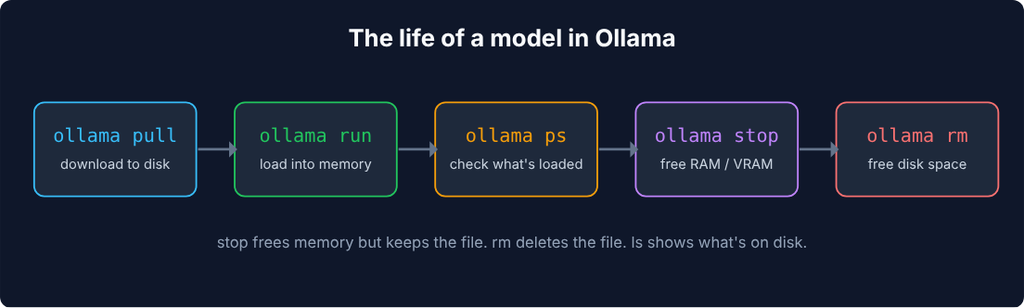
Pull a model
ollama pull llama3.2          # default tag (usually "latest")
ollama pull llama3.2:1b       # a specific size or quantization tag
Running ollama pull on a model you already have updates it. Only the parts that changed are downloaded.
The part after the colon is the tag. Leave it off and you get latest, the default version the publisher picked. Tags like :1b or :3b choose a size, and longer tags such as 3b-instruct-q8_0 also choose a quantization (lower bits means a smaller, faster model that’s a bit less accurate). Each model’s page on ollama.com lists its tags. Ollama also offers cloud models that run on Ollama’s servers instead of your machine; those need ollama signin first.
Ollama list models command
To see every model on your machine, use ollama list, or the shorter ollama ls. You get the name, ID, size on disk and when it was last modified.
ollama lsDon’t mix this up with ollama ps. ls shows what’s downloaded. ps shows what’s loaded right now.
See model details with ollama show
ollama show llama3.2               # architecture, parameters, context length, quantization
ollama show llama3.2 --modelfile   # the Modelfile behind it
ollama show llama3.2 --parameters  # default parameters
ollama show llama3.2 --template    # prompt template
ollama show llama3.2 --system      # system message
ollama show llama3.2 --license     # license text
ollama show llama3.2 -v            # extra detail
Ollama remove model
To delete a model and get the disk space back, use ollama rm. You can remove several at once.
ollama rm llama3.2
ollama rm llama3.2:1b gemma4 mistral
Check the exact name with ollama ls first. If you pulled a tagged version like llama3.2:1b, you have to remove it by that full name.
If the model is loaded, ollama rm unloads it first, so you get the memory back as well as the disk space. One thing does catch people out: models made with ollama cp share the same underlying files, so removing a copy may not free much space until the original is gone too.
Copy and rename a model
ollama cp llama3.2 my-llamaThere’s no rename command. Copy the model to the new name, then ollama rm the old one.
Checking what’s running: ollama ps and ollama stop
ollama ps tells you which models are loaded, how much memory each one uses, whether it’s running on your GPU or CPU, and when it will be unloaded.
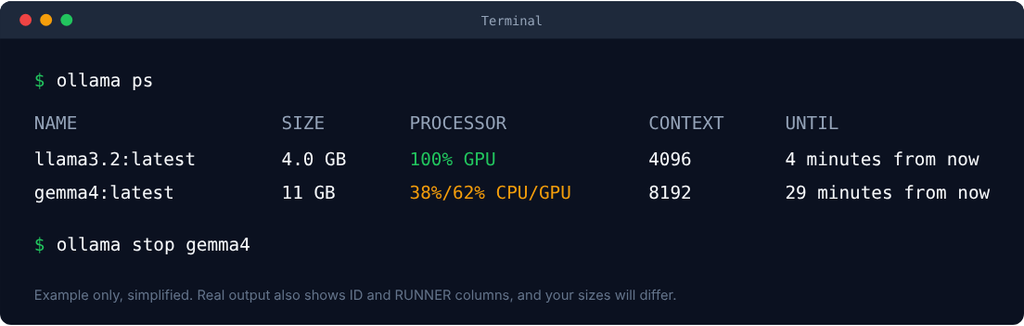
The PROCESSOR column is the most useful thing here. “100% GPU” is what you want. A split like “38%/62% CPU/GPU” means part of the model didn’t fit in VRAM and spilled into system RAM, which makes it much slower. Use a smaller model or a lower-bit quantization, or lower the context length. Our guide on what fits in 32GB helps you choose sizes.
Ollama stop model
ollama stop llama3.2This unloads the model from memory straight away. It stays on disk, so the next ollama run loads it again. You can do the same through the API by sending keep_alive set to 0:
curl http://localhost:11434/api/generate -d '{"model": "llama3.2", "keep_alive": 0}'By default a model stays loaded for 5 minutes after its last request. Change that for one run with --keepalive, or for everything with the OLLAMA_KEEP_ALIVE environment variable. A negative value keeps the model loaded indefinitely.
Custom models with a Modelfile
A Modelfile is a short text recipe that turns a base model into your own version, with a fixed system prompt, different defaults or a bigger context window. It’s how you make a “commit message writer” or a “SQL helper” that behaves the same way every time.
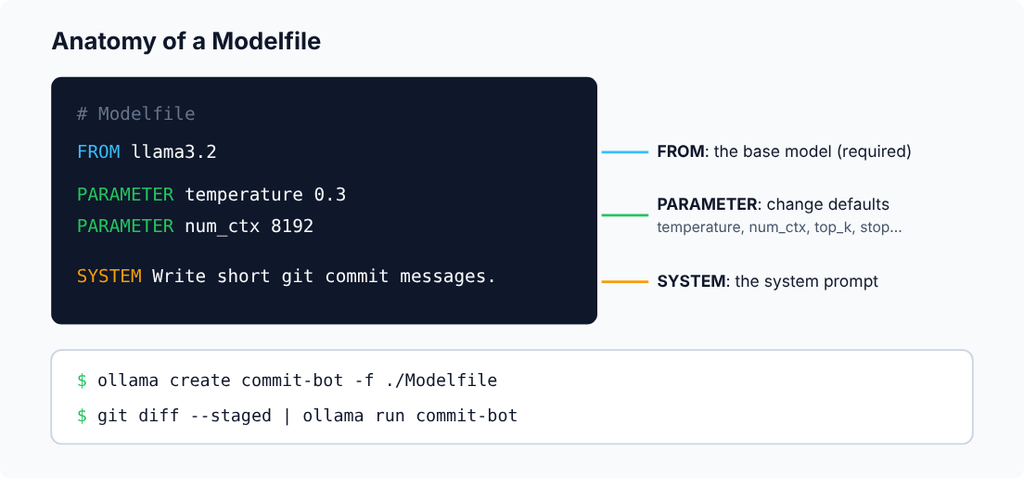
Save this as a file called Modelfile:
FROM llama3.2
PARAMETER temperature 0.3
PARAMETER num_ctx 8192
SYSTEM """You write short, clear git commit messages in the imperative mood. Reply with the message only."""
Then build it and use it:
ollama create commit-bot -f ./Modelfile
git diff --staged | ollama run commit-bot
The instructions you’ll actually use:
| Instruction | What it does |
|---|---|
FROM | Required. The base model, or a path to a GGUF file or Safetensors folder |
PARAMETER | Sets a default, such as temperature, num_ctx, top_k, top_p, seed or stop |
SYSTEM | The system prompt |
TEMPLATE | The full prompt template, in Go template syntax |
MESSAGE | Adds example conversation turns (user, assistant, system) |
LICENSE | The license text |
REQUIRES | The minimum Ollama version the model needs |
The easiest way to learn the format is to read one that already works: ollama show llama3.2 --modelfile. If you just want a tweaked model without writing a file, change settings in a chat session with /set and save it with /save my-model.
Ollama environment variables
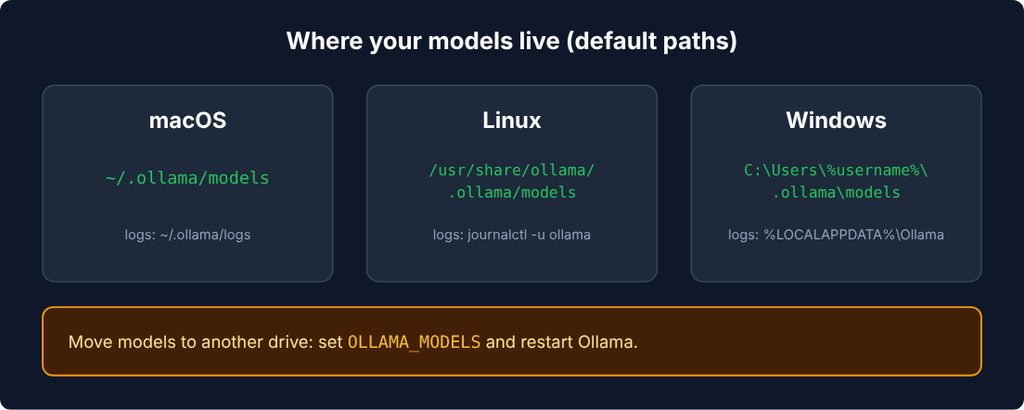
Environment variables control the server, not individual chats. Set them where the server runs (the systemd unit, launchctl or Windows environment variables), then restart Ollama. ollama serve --help prints the main ones for your installed version.
| Variable | What it controls |
|---|---|
OLLAMA_HOST | Address and port. Default 127.0.0.1:11434 |
OLLAMA_MODELS | Where models are stored. Useful for moving them to a bigger drive |
OLLAMA_KEEP_ALIVE | How long models stay loaded. Default 5 minutes |
OLLAMA_CONTEXT_LENGTH | Default context window when a request doesn’t set one |
OLLAMA_NUM_PARALLEL | How many requests each model handles at once |
OLLAMA_MAX_LOADED_MODELS | How many models can be loaded at the same time, per GPU (default 3 per GPU, or 3 on CPU) |
OLLAMA_MAX_QUEUE | How many requests can wait in the queue before Ollama returns an error |
OLLAMA_FLASH_ATTENTION | Forces Flash Attention on (1) or off (0) |
OLLAMA_KV_CACHE_TYPE | Cache precision: f16 (default), q8_0 or q4_0. Lower uses less memory. Only works with Flash Attention on |
OLLAMA_ORIGINS | Extra allowed browser origins, for example for a browser extension |
OLLAMA_NO_CLOUD | Set to 1 to turn off cloud models and web search |
OLLAMA_DEBUG | Set to 1 for detailed logs when troubleshooting |
About context length: recent versions pick the default based on how much VRAM you have (4K, 32K or 256K tokens, according to the Ollama source code), so it isn’t the same on every machine. Older guides, and the FAQ at the time of writing, still say 4,096. Check the CONTEXT column in ollama ps to see what you actually got. A bigger context uses a lot more memory, which is one of the most common reasons a model suddenly drops to CPU.
Using the Ollama API with curl
The CLI is a client for a REST API, and you can call that API yourself from any language. These are the endpoints most people use:
# chat
curl http://localhost:11434/api/chat -d '{
  "model": "llama3.2",
  "messages": [{"role": "user", "content": "Why is the sky blue?"}],
  "stream": false
}'

# list downloaded models (same as ollama ls)
curl http://localhost:11434/api/tags

# list running models (same as ollama ps)
curl http://localhost:11434/api/ps

# check the server version
curl http://localhost:11434/api/version
Ollama also has an OpenAI-compatible API at http://localhost:11434/v1, so most tools built for the OpenAI API work once you change the base URL. There’s an Anthropic-compatible Messages endpoint too, which is how coding tools like Claude Code can run on local models.
ollama launch: connect coding agents
ollama launch is a newer command that configures a coding tool to use an Ollama model and starts it, so you don’t have to set base URLs and API keys by hand. The official docs list OpenCode, Claude Code, Codex, VS Code and Droid as supported integrations.
ollama launch                              # pick an integration from a menu
ollama launch claude                       # start Claude Code on an Ollama model
ollama launch claude --model qwen3.5       # choose the model
ollama launch droid --config               # configure without starting it
Need Claude Code first? Here’s how to install Claude Code. If you’d rather stay in your editor, we’ve also covered running Kilo Code with local models.
Updating, logs and Docker
Update Ollama
- macOS and Windows app: updates download automatically. Click the Ollama icon and choose “Restart to update.”
- Homebrew:
brew upgrade ollama - Linux: run the install script again:
curl -fsSL https://ollama.com/install.sh | sh
Check the result with ollama -v.
Find the logs
- macOS:
~/.ollama/logs/server.log - Linux:
journalctl -e -u ollama - Windows:
%LOCALAPPDATA%\Ollama\server.log
When something breaks, the server log almost always says why. The most common errors are covered further down.
Ollama Docker commands
# CPU only
docker run -d -v ollama:/root/.ollama -p 11434:11434 --name ollama ollama/ollama

# NVIDIA GPU (needs the NVIDIA Container Toolkit)
docker run -d --gpus=all -v ollama:/root/.ollama -p 11434:11434 --name ollama ollama/ollama

# run a model inside the container
docker exec -it ollama ollama run llama3.2
Every command in this cheat sheet works inside the container. Just put docker exec -it ollama in front of it. Pair it with Open WebUI if you want a ChatGPT-style interface.
Common Ollama errors and fixes
| Error | What it means and how to fix it |
|---|---|
could not connect to ollama server | The server isn’t running. Open the Ollama app, run sudo systemctl start ollama on Linux, or start it with ollama serve |
bind: address already in use | Something already uses port 11434, usually Ollama itself. Don’t start a second server. If another program has the port, change OLLAMA_HOST |
pull model manifest: file does not exist | The model name or tag is wrong. Check the spelling and the tag on the model’s page at ollama.com |
time: missing unit in duration | --keepalive needs a unit, like 30m or 1h, not a bare number |
permission denied on the models folder | On Linux the ollama user needs read and write access to your OLLAMA_MODELS folder. Fix ownership with sudo chown -R ollama:ollama /your/models/path |
| Model is very slow | Run ollama ps. If PROCESSOR shows a CPU/GPU split, the model or its context window doesn’t fit in VRAM |
For more fixes, and for reading the server log, see our Ollama troubleshooting guide.
Where Ollama stores models, and how to uninstall Ollama
Uninstall Ollama on macOS
Quit Ollama from the menu bar, then remove the app, the CLI link and its data:
sudo rm -rf /Applications/Ollama.app
sudo rm /usr/local/bin/ollama
rm -rf ~/Library/Application\ Support/Ollama
rm -rf ~/Library/Saved\ Application\ State/com.electron.ollama.savedState
rm -rf ~/Library/Caches/com.electron.ollama/
rm -rf ~/Library/Caches/ollama
rm -rf ~/Library/WebKit/com.electron.ollama
rm -rf ~/.ollama    # this deletes all downloaded models
If you installed with Homebrew, run brew services stop ollama and brew uninstall ollama instead of the first two lines, then delete ~/.ollama if you want the models gone too.
Uninstall Ollama on Linux
sudo systemctl stop ollama
sudo systemctl disable ollama
sudo rm /etc/systemd/system/ollama.service
sudo rm -r $(which ollama | tr 'bin' 'lib')
sudo rm $(which ollama)
sudo userdel ollama
sudo groupdel ollama
sudo rm -r /usr/share/ollama
Uninstall Ollama on Windows
Go to Settings, then Apps, then “Add or remove programs”, and uninstall Ollama. If you moved your models with OLLAMA_MODELS, the uninstaller won’t delete them, so remove that folder yourself.
Frequently asked questions
What are the basic Ollama commands?
The eight you’ll use most are ollama serve (start the server), ollama run (chat with a model), ollama pull (download), ollama ls (list downloaded models), ollama ps (list loaded models), ollama stop (unload), ollama rm (delete) and ollama create (build a custom model from a Modelfile).
How do I list all models in Ollama?
Run ollama list or ollama ls to see every downloaded model. To see only the models loaded in memory right now, run ollama ps.
What is the default Ollama port?
11434. The server listens on 127.0.0.1:11434 by default.
How do I change the Ollama port?
Set the OLLAMA_HOST environment variable where the server runs, for example OLLAMA_HOST=127.0.0.1:11500, then restart Ollama. On Linux, add it to the systemd service with sudo systemctl edit ollama.service. Clients then need the new port too, for example OLLAMA_HOST=127.0.0.1:11500 ollama ls.
How do I uninstall Ollama?
On Windows, remove it from “Add or remove programs.” On macOS, quit the app, delete /Applications/Ollama.app and /usr/local/bin/ollama, and delete ~/.ollama to remove your models. On Linux, stop and disable the service, then delete the binary, the service file and /usr/share/ollama. The full commands for each system are in the uninstall section above.
How do I remove a model in Ollama?
Run ollama rm followed by the model name exactly as ollama ls shows it, for example ollama rm llama3.2:1b. You can list several models in one command.
How do I stop a model that’s running?
Run ollama stop followed by the model name. It unloads the model from memory but keeps it on disk.
How do I stop the Ollama server?
On macOS and Windows, quit the Ollama app from the menu bar or system tray. On Linux, run sudo systemctl stop ollama. If you started it yourself with ollama serve, press Ctrl+C in that terminal.
Do I need to run ollama serve every time?
Usually not. The desktop app on macOS and Windows and the systemd service on Linux keep the server running in the background. You only need ollama serve after a manual or Homebrew install without the service, or when you want to start the server with custom environment variables.
Next step: pick a model that actually fits your hardware. Start with what fits in 32GB.

Keep exploring



Leave a Reply